On the other hand of all these things. We all need call recorder for android. Few Android based provided inbuilt to call recording app. Sometimes in many situation we all need call recording feature to record call as proof. Recorded calls can be use as communication proof with others bases on prospective reasons. In that situation we just need call recorder on android to record calls. There are many of the best call recording apps for Android available on Google play store. Which provides various features including call recording. In this article we are going to list out some best call recorder for android. Some of them paid and rest other are free to use. Choose any of them which suites according to your need.
Android phones are the example of latest technology phones. Old mobile phones are limited to only listening and hearing of two person involved into communication. But on smartphones we can use various apps to access features. As normal user love to play games on our device. No doubt their are hundreds of best android games are available. Except all these things calling feature is also gone advanced on smartphone generation. We can also make free call by using android free calling apps.
On the other hand of all these things. We all need call recorder for android. Few Android based provided inbuilt to call recording app. Sometimes in many situation we all need call recording feature to record call as proof. Recorded calls can be use as communication proof with others bases on prospective reasons. In that situation we just need call recorder on android to record calls. There are many of the best call recording apps for Android available on Google play store. Which provides various features including call recording. In this article we are going to list out some best call recorder for android. Some of them paid and rest other are free to use. Choose any of them which suites according to your need.
Call Recorder ACR is most Commonly used call recorder for android. Which is also available on Google Play store.This app allow you to record all incoming and outgoing calls on your Android phone. This app provide many features like auto and manual call recording, password protection of recordings, auto delete old recordings. and supported formats are 3GP, Mp3, AAC, WAWE. It also support cloud service to store your recording on Google drive and other place.
Automatic call recorder is another call recording android app with addition features, also available on Google play Store to download. This app need not be turn on to record calls as it automatically turn on when a call is made. This app provide three default settings if you do not want to record all the incoming and outgoing calls. You can set recorder to record calls from unknown numbers, record calls of selected numbers, record calls of all available contacts.
Galaxy Call Recorder as its name indicates is specially designed for Samsung Galaxy phones and is also compatible with other Android mobiles. You can set call recording to automatic and manual mode. We can also protect call recordings by password protection. Like other call recorder given above it can also record all incoming and outgoing calls. If you have Samsung Galaxy phone you must use it.
All call recorder is another popular call recorder for Android phones also available on Google Play store. After call recording we share it on Facebook, Twitter, Google Drive etc that apps support cloud services. Call is recorded in 3GP format and we can also protect it by password. It provide options for playback recording, send recording and delete recordings.
Record My Call is an another popular Android call recording app. It is simple to use record all incoming and outgoing calls with speed and accuracy. It Provide features to arrange recording according to time, day, Month, year. It also support cloud services and available on Google play store for free.
Call recorder Pro is another android paid call recorder Apps. The app is compatible with Nexus 5, HTC One series, Samsung Galaxy 4 and 5. This warn you before recording a call and user can allow access to record and can restrict recording. You download it from mobile play store The Pro version allow you to set the voice qualities, restrict some recordings from deleting, support cloud services, automate the recording functions. It is developed by Clever Mobile Apps developers and its cost $5 approx.
These are few best call recorder for android phone. In case missed any of the best call recording app for android device then share it with us in comments.
Smartphones becomes best companion of youngsters. Now phones are not limited to calling and messaging. We perform many tasks with phones like internet browsing, photo capturing, Email, Store large Amount of data, use different Apps etc. Due to crazy of smartphones in young generation thousands of latest smartphones get launched every years. If you are planning to buy smartphone then much check Best smartphone to buy. Number of different devices with OS are available. But Android phone users increased tremendously because they provide amazing features at low cost. Android has its own marketplace that provides large number of Apps and games.
But we always worried about its security because there are many Apps, contacts, mails and other personal data. Sometimes our friends, family and other children want to play games which is also risky for security wise. Normally we use screen lock apps for android. But screen locks on protect from misuse. But in that situation screen lock method didn’t help out even we can hide apps on android also. All these things can protect data in different conditions. But to reduce all issues regarding privacy and security, best way is to use app locker for android. Today here we are going to provide few best app locker for android which will protect your gallery, images, file manager or any other app with password.
List Best App Locker For Android.
1. AppLock.
AppLock is one of the most popular apps locker for android available on Google Play Store for free. It provide you the facility to secure your phone Application and data with password. You can only access the Applications if you know the correct password. It also provide the facility of pattern lock to different App with different background colors. It have Approximately 1 million users and support 24 different languages.
2. SmartLock.
SmartLock is another app locker for android which is available on Google Play Store for free. It can lock phone inbuilt App as well as installed Apps. Its media tab show all the media files like audio, video, photos etc allow you to lock them. It can also lock USB storage and phone auto screen rotate. It also provide support for Android Lollipop version. Approximately 5,000,000 users install this App. It allow both pattern and key lock.
3. Perfect App Protector.
Perfect App Protector is another popular Android App to protect your data and App which is available on Google Play Store for free. We can not delete an App before unlocking it. It also provide a unique feature that make it distinct from another Apps that is Stealth mode. In this mode an App become complete invisible from launcher. It allow you to lock any App with Pattern, Pin or gesture. It can also display fake messages when locked App is launched. Approximately 5,000,000 users install this App.
4. Smart App Protector.
Smart App Protector is another popular app locker for android which allow you to lock Gallery and installed phone Apps. It provide simple and easy to use interface. It is available on Google Play Store for free. You can lock the Apps with pattern, Pin and gesture. This App monitor unlocking the of Apps and on failed capture the screen shot of intruder. Approximately 7,000,000 users install this App. It also allow lock App using multiple passwords.
5. Vision App Locker.
Vision App Locker is popular and smart Android Application that is available on Google Playstore for free. This App locker provide a smart feature that make it distinct from other locker. We can use our face us a password to unlock any App. You are also required to provide a password in case of face recognition failure. It support both pattern and pin lock . We can lock Gallery and other inbuilt phone Apps, installed Apps. Approximately 1000,000 users install this App.
6. Safe Gallery.
Safe Gallery is another Popular Android App which allow you to protect your Gallery App and Gallery media files. It is available on Google Play Store for free. With help of this App we can manage this Gallery and it allow to protect our data with Pin, Pattern etc. It allow simple and attractive interface. It support 4 languages including English. You do not need to worry about your data with the help of this App.
7. Gallery Lock.
Gallery Lock is another Android locker which is available on Google Play Store for free. It also Support stealth mode that is you can hide a launch icon. We can share picture with Gallery Lock to any other App. It also support cloud backup to Google drive, dropbox etc. It allow the three attempt to open the Gallery after three failure it capture the image of Attacker. Approximately 10,000,000 users download this App.
8. Secure Gallery.
Secure Gallery is an awesome Gallery locking App which is available on Google Play Store for free. It can hide picture and videos in the Gallery. It provide attractive and user friendly interface. It also support the stealth mode. It provide easy Gallery management. We can change the background of Gallery. It also provide image viewer and slide show for images. It support both pattern and Pin lock. Approximately 5,000,000 users download this App.
So these are few best app locker for android. I hope you like this list in case we miss any best app and gallery locker app then must share it with us in comments.
Android device are used widely and become our new generation phones. Android devices are popular because of there are attractive features including fast internet, Video calling, Audio and Video at HD quality, camera, installing custom ROM and UI etc. Android device support multitasking and multiprocessing that is we can run several programs at the same time for example we can listen music and play internet at the same time. Due to large account of personal data so security and privacy is also main issue. I recommend to install best screen lock apps. As many programs or Aapps we run on our device, the most common issue we all face is, our device battery get discharge soon. Battery backup is also become a problem with the multitasking. In that condition we have to try various techniques to increase android battery life. There are several reasons for discharging our battery soon including hardware problem, overcharging, background running Apps, increase internet usage etc. If your are also suffer from this problem then we are going to discuss few tips to increase android battery life. Try all these tips one by one see how much it effect battery health.
Best Tips To Increase Android Battery life.
1. Check The Apps Which Is Using More Power.
In our Android device there are several apps installed and consume different amount of power. We have to observe which App consume what amount of power to remove or turn of its power consuming features. You can check this by going to Setting > About phone > Battery use.
2. Stop Unnecessary Services.
In our Android device there are several background services which consume our RAM and battery. So we have stop such services. For doing this go to Settings >Applications > Running services. In the next screen you will find a list of services with their RAM amount usage. We can turn off services like software update, email and other services you are not using currently. this will increase android battery life.
3. Turn Off Bluetooth And WiFi After Usage.
In our Android device we use Bluetooth and WiFi for data sharing and internet access. When we turn on Bluetooth or WiFi radio wave generator start generating waves and consume our battery. So we have to turn off Bluetooth and WiFi after usage this will increase battery life of android.
4. Reduce Multitasking.
In our Android device we run multiple Apps at same time. If we are running more Apps it will consume more amount of CPU, battery and get it down. Because processor have to process more apps simultaneously it will increase its burden. So close the Apps which are not used by you currently. It will increase android battery life performance.
5. Turn Off Internet After Use.
In our Android device we often remains our internet connection when we are not using it. Several Apps uses this internet and make them update automatically. It will consume our battery because processor have to process these apps. Also we get notifications from different messengers and they run in background. So we have to turn off our connection after usage.
6. Turn Off GPS.
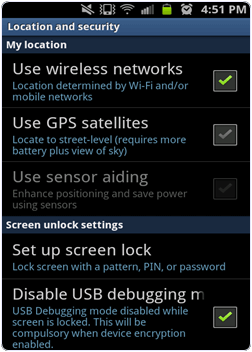
In our Android device the GPS receiver is turned on by default. When this receiver is active our Android device search for satellite and its processor sent the information to App which need it even if there is no Apps installed in our phone that is no using GPS. So we have to turn off GPS when there is no need of it. We can do this by go to Settings> Security and Location > Enable/disable GPS.
7. Turn Off Your Hotspot After Use.
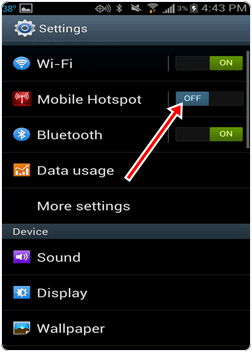
Android another important feature is hotspot. With the help of hotspot we can share our phone cellular data connection with laptop and with another phones. When we turn on hotspot feature then our phone data connection travel on radio waves which is captured by another device . Hotspot feature also discharge our battery soon so we have to turn off this feature after use to increase android battery life.
8. Decrease Display Brightness Or Disable Auto.
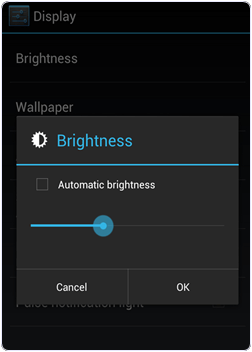
Display brightness is another factor which effect our battery consumption. If we increase our display brightness Android display led take more power to illuminate pixel color density. So we have to decrease our brightness to visible extent to increase android battery life and protect our eyes also or even best way to adjust according to lightening.
9. Turn On Power Saver Mode.
Power saver mode is one of the most popular features which is specially available in Samsung Mobiles. If you have Samsung or other mobile which support power saving mode then you should turn power saver mode to increase your battery life. Power saver mode close all unnecessary services and process and decrease the display brightness etc.
10. Avoid Overcharging Of Battery.
When we plug our phone for charging then we have to take care of how much time the phone take to fully charged. After full charging we have to remove our charger because overcharging will damage our battery and also heat our phone components. So we have to take care of battery charging time. Even their are some application which alarm when battery get fully charged.
11. Buy Extended Battery.
When you need to replace a battery always buy original company battery to get long battery life. If you want more power backup then you should buy extended battery then previous one. If you have 2000 mha battery previous then you should buy 24000 mha or more power battery and follow above tips.
So these are few best battery saving tips for android. I hope by implementing all these will help to increase android battery life.
Android mobiles are popular in market because Android offer you the amazing features in cheaper rates. Android is based on Linux based Operating System and hardware independent. Android smartphones include features like high quality camera, touch support, Fast 3G, 4G and so on internet speed connections, RAM, ROM, processor with many other features which makes Android a best class smartphone. Android is popular for its Apps and games marketplace. As normally use Google play store which offer a large number of Apps, games, ebooks at free and paid version.
As Android OS is an Google Inc Product. So Google provide all the features which need other services like playstore, drives, maps music and many more. To store huge amount data and keep them secure We need to create backup our all data safely. As i already discuss about some Best Backup Apps or Android. Google also provides Sync features to drive or gmail account for backups but we need high speed internet connection to do that. As the most important data of our phone is contact. So always to make backup of all of them. In case our Android device is lost or sometimes our Android device is accidentally format by someone. If you don’t have internet to sync then we have to backup contacts in android on some other storage device so that we can take backup in case of any emergency. If you do not know how to backup contacts in android phone then don’t worry because today we are going to discuss some best methods to take backup all contacts in Android device. So that you can easily recover them whenever you want.
How To Backup Contacts In Android Phone. ?
Method 1st:- Backup Android Contact To SD Card.
Contact App is an inbuilt Android app that comes with every Android device. It is used to manage contacts on our Android device, saved new contacts and allow to take backup of contacts into SD card or sim Card. We can transfer these contacts into PC or some other device.
Steps To Backup Contacts In Android.
1. Open your Android device menu and click on contact App.
2. Click the Tap button now you see a popup Menu.
3. In the menu tap import/export menu item.
2. Click the Tap button now you see a popup Menu.
3. In the menu tap import/export menu item.
4. Now you see import/export popup menu. In the menu select export to external storage.
5. In this way you can backup your Android contacts to SD card. The backup contacts are stored in VCard file in the SD card.
6. Now you can connect your phone with PC using Wifi and USB cable and Drag and Drop your contacts to PC or Laptop.
Method 2nd:- Backup Contacts From Android To Gmail.
You can also backup your Android phone contacts on your gmail Account by using the following simple steps.
Steps to Backup all contacts.
1. Open your Android menu and finds settings. You can also open setting by home screen drop down menu.
2. In the settings click on the scroll button to find Account and sync.
1. Open your Android menu and finds settings. You can also open setting by home screen drop down menu.
2. In the settings click on the scroll button to find Account and sync.
3. After that Login to your Gmail Account and tap sync contact option. It will take few minutes.
4. If you already save your contacts to your gmail Account, then you need not to follow first to steps and then directly login to your Account. Please open your Gmail on PC.
5. Select the contacts you want to backup and click more button then select export button.
6. Choose the selected contact radio button and select the vcard format then you can save your contact to PC. You can open them in the Address book.
Method 3rd:- Backup Contact s From Android To PC.
MobileGo is an efficient Application for sharing Android device data with computers. We can transfer data to and from Android to computer and vice versa. The app is available for both Windows and Mac OS. It allow you to take backup of your contacts just with one click.
Steps to Backup Contacts In Android.
1. Download and Install MobileGo Wondershare App in you PC. Run the App.
2. Connect your Android device with WiFi or via a USB cable. Software will Automatically detect your Android device and show in the primary Window.
3. Now click on the contact tab to open the contact management Window.
4. In the contact management Window you see a list of your phone contacts.
5. Select the contacts and click on import/export button.
6. Now see a drop down menu. In the menu select export selected contacts to computer or export all contacts to computer.
7. Now your contact list is ready and you can view it using Outlook Express, Window address book etc in vCard file.So these are some best ways to backup all contacts on android smartphone easily. If you know any other method don’t forget to share it with us in comments.
Now-a-days it is common that all the
third-party software requires Microsoft .Net Framework installed on system. The
problem is that different software requires different versions of installed
.Net Framework. Actually, windows 8 and 8.1 are available with latest version
.Net Framework 4.5. Most software requires version 3.5 to run.
This problem arises on every fresh
Windows 8/8.1 install. If you are using Windows 8 or 8.1, you might be facing
problems running applications which require .Net Framework 3.5. As windows 8 or
8.1 doesn’t come up with installed .Net Framework 3.5. So whenever you are
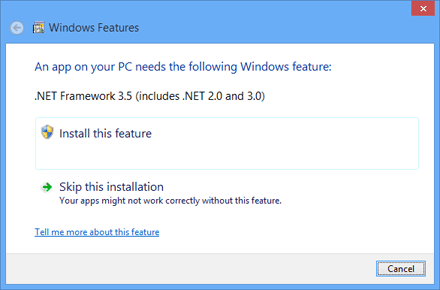
trying to launch a program, it comes up with following message:-
AN APP ON YOUR PC NEEDS THE FOLLOWING WINDOWS FEATURE:
.NET FRAMEWORK 3.5 (INCLUDES .NET 2.0 AND 3.0)
Are you a Internet Explorer fan? I guess, you're not. Good. Actually, Microsoft is going to remove his traditional pre-installed browser in its next version of Windows. News from our sources from within Microsoft reported that Microsoft is not supporting boring Internet Explorer Browser. It was guessed by all that next version would be IE v11.0 but it is not.
Actually, in previous version of windows, Microsoft tried to make people believe that in windows 8.1, the version of IE is light weight and it is user friendly too. But due to old impression of IE, user don't believe on it.
So, they decided to remove the IE and launch a new browser code named Spartan. Though, it is not the final name and they have to launch the official name for next coming browser. This may be revolutionary in this field. This can change their image in the market of browser.
Actually, in previous version of windows, Microsoft tried to make people believe that in windows 8.1, the version of IE is light weight and it is user friendly too. But due to old impression of IE, user don't believe on it.
So, they decided to remove the IE and launch a new browser code named Spartan. Though, it is not the final name and they have to launch the official name for next coming browser. This may be revolutionary in this field. This can change their image in the market of browser.
Though it is using the old technology which was used by old version of IE but all the looking of new browser will be new. They believe that this browser will compete with the Google Chrome and Mozilla Firefox as well. They are going to launch it officially in no time.
Use Notepad
As A Diary:-
Ever wanted to maintain a diary on your
PC?
Now, you can do it without the use of any
software!
USE NOTEPAD!
Do the following:
1. Open Notepad
2. Type: .LOG
3. Save it with any name say 'MyDiary'
4. Open Diary.txt again.
Wow you see today's date and time, so
start writing your Diary!
Wow Notepad
Knew About 9/11/2001!
That’s amazing
but true, Notepad knew about 9/11/2001!
The flight
number which hit the WTC in New York was Q33N!
See it
yourself:
1. Open
Notepad
2. Type: Q33N
3. Now, go to
Format Menu
4. Choose
Font.
5. Change the
size to '72'
6. Change the
font to 'Wingdings'
7. See what is
displayed!
Create Fake
Windows Errors With Notepad
This trick allows you to create Fake Error
messages. To do this, follow these steps:
1. Open Notepad
2. Type X=Msgbox(“Message
Here”,0+16,”Title Here”)
3. Replace “Message Here” and “Title
Here” with your Error Message and Error-Window Title respectively.
4. Save the file with .vbs.
5.
Now, click the file and you’ll get your custom-made Windows error
message.
Force
Shutdown Your Windows
This trick will let you force shutdown
your Windows in a single-click. So, if you don’t want to waste three clicks
(Start >> Shut Down), and then waiting for programs to close. This trick
will help you in that. To do this:
1. Open Notepad
2. Paste
@echo off
msg * Shutdown computer
shutdown -c “Sleep Tight” –s
3. Save the file with .bat extension.
For example, shutdown.bat
4. Double Click on your file and it will
automatically shutdown your Windows.
Open a file
using notepad
Here is a simple trick to open any file
or program with notepad.
1. Copy the path of the file which is to
be opened.
As I want to open a video song and I copied its path "F:\Videos\Songs\English\Priyanka Chopra -
Exotic ft. Pitbull.mp4"
2. Now open the Notepad
3. Write explorer.exe
4. Now paste the file path address which
you copied.
For ex.:
explorer.exe F:\Videos\Songs\English\Priyanka
Chopra - Exotic ft. Pitbull.mp4
5. Now save it as anyname.bat (it’s a batch
file)
6. Double click and now you can open
your favourite file at single click.
Make
Questions
Make something interactive. Ask
questions. Here is an example of a question made with notepad where the user
got the correct answer.
To do this, just paste the given code in
Notepad:-
@ECHO
OFF
ECHO:
ECHO ………………………………………..
ECHO Press 1 or 2 to select your task,
and 3 to EXIT.
ECHO ………………………………………..
ECHO.
ECHO 1 – You are a human!
ECHO 2 – You are not a human, you are something
else!
ECHO 3 – EXIT
ECHO.
SET /P M=Type 1, 2, or 3 then press
ENTER:
echo:
IF %M%==1 GOTO Right
IF %M%==2 GOTO Wrong
IF %M%==3 GOTO EXIT
:Right
echo You are right, you know about
yourself very well, ha ha ha!!!
GOTO END
:Wrong
echo You are wrong. Still you are a
human!!!
GOTO END
:END
PAUSE
goto EXIT
:EXIT
Now save it as anyname.bat file. Open the file and you are done.
Create a
Harmless Funny Virus with Notepad-Continuously eject CD/DVD drives
This VBS trick will create a code which
will continuously eject all your connected Optical drives. If you put them back
in, it will pop them out again. Copy this code and paste it in Notepad as Virus.vbs.
Set oWMP =
CreateObject("WMPlayer.OCX.7")
Set colCDROMs = oWMP.cdromCollection
do
if colCDROMs.Count >= 1 then
For i = 0 to colCDROMs.Count - 1
colCDROMs.Item(i).Eject
Next
For i = 0 to colCDROMs.Count - 1
colCDROMs.Item(i).Eject
Next
End If
wscript.sleep 5000
loop
Double click to open this file and enjoy.
Take revenge.
Make Your
Keyboard Type (Any) Message Continuously-VBS Trick
This VBS trick can make your keyboard to
type any message continuously. Open Notepad, copy the code given below and save
the file as Tricks.vbs. You will need
to restart your computer to stop this. Try this after closing all important
programs.
Set wshShell =
wscript.CreateObject("WScript.Shell")
do
wscript.sleep 100
wshshell.sendkeys "This is a Virus.
You have been infected. Your Anti-Virus is not working!!!"
Loop
Make the
Matrix
This falling code trick is extremely
popular on social networking sites. Copy and paste the code given below in
Notepad and save the file as "Matrix.bat" or *.bat.
@echo off
color 0a
:A
echo 7 y x 3 8 G M P q 1 F 0 U v c i j
ping localhost -n 1 > nul
echo o D s a E I j H 9 t 6 7 z C B 4 g 8
ping localhost -n 1 > nul
echo g F x 6 A e 9 1 b M W r T h k P 8 3
ping localhost -n 1 > nul
echo j G a e 3 5 B x Z Q p 0 o 2 h V u C
ping localhost -n 1 > nul
echo 7 f S E A q p 7 b d h U C V 1 4 8 3
ping localhost -n 1 > nul
goto A
Upon running the bat file, you will see
the "Matrix Falling Code" effect.
Make a fake
Virus POP UP
Make afraid your friends. Type the
following code in notepad:
@echo off
msg * WARNING
msg * VIRUS ENTERED YOUR PC. Your Anti-Virus
is not working.
Save the file as Virus.bat and run it. You should get two pop up messages. This may
not work on few computers.
How To
Create An Aggravating Pop-up
Open Notepad and paste the code:
msg * Hello
msg * How are you?
msg * Stop trying to make me go away.
You can’t.
msg * I will never go away never.
msg * Still here.
msg * This is getting boring/
msg * "Yawn"
msg * I think I will go now.
msg * Yeah I may.
msg * Well bye
msg * "End of Message"
Now save your file as anyname.bat and open your file.
(You can make the message pop-up long
just type: msg* Whatever you want)
Make A Fake
Virus
Open Notepad and type this in:
@echo off
title WARNING
echo PROGRAM HAS INSTALLED MALICIOUS
SOFTWARE
pause
echo CONTACTING ANTIVIRUS SOFTWARE...
pause
echo DO YOU WISH TO DELETE
VIRUS?...(y/n)
pause
echo ACESS DENIED
pause >nul
echo ACESS DENIED
pause >nul
echo ACESS DENIED
pause >nul
echo RUNNING VIRUS...
pause
: i
dir /a
goto i
In Modern world, everyone wants to have maximum
privacy in his/her smartphone, so maintain privacy we prefer Pattern Lock, PIN
lock, Password or something other type of security check. Pattern
lock is one of them which give most security to our smartphone in order to
prevent unauthorized use of our Phone. But one frustration things may happen with
your Android Smartphone when it is permanently locked. It may happen when
someone wants to check your phone and apply more attempts to unlock and then it
gets permanently locked.
A memory card or USB Drive is an electronic flash
memory data storage device used for storing digital information. These are
commonly used in many electronic devices, including digital cameras, mobile
phones, laptop computers, MP3 players and video game consoles, Tablets. Most of
these can be diminutive, re-recordable, and can retain data without power. These
are commonly used in many electronic devices to transfer data from one place to
another.
Windows is most popular OS platform
being used all over the world. Every Windows user has a dream to use Apple
Macintosh once, isn’t it?
Second, it is common problem among
us to shut down windows by clicking on Start Menu and then selecting Shut down.
Shutting down and restarting laptop consumes a lot of time. Suppose, you
suddenly need to go somewhere and now have to shut down your system, at such
time even 1 Min seems too long.
This is an amazing trick that you
can do with your computer. But do this if you use OS later than Windows XP.
Your screen will look much attractive and bigger. Just follow the steps:-
* Right click on your desktop and
select SCREEN RESOLUTION.
* Now click on "Make text and other
items larger and smaller".
Youtube is most
popular video platform on internet. Over 6 billion hours of video are watched
each month on YouTube—that's almost an hour for every person on Earth. All new
released videos which are launched in the market, are also available on Youtube
to watch freely. Most amazing thing is that the videos are original and
official unlike other websites tag their names in videos.
Suppose you don’t have a DVD drive
or it is not working or you don’t have USB drive with you and your copy of
windows is corrupted. Now, you might be thinking that is now impossible to
install windows and thinking to take it to mechanic. You don’t need to do that.
You may be wondering how to do it without external DVD drive or even USB Drive.
Isn’t it? In such a condition, what can be a perfect way to install windows. If
you are suffering from the same problem then you have come to the right place.
We will help you to get out of the problem.
Suppose
you have a notebook pc and want to upgrade it to windows 7, 8, or 8.1. You may
be wondering how to do it without external DVD drive. Isn’t it? Or sometimes,
we face the problem with DVD writer as it is not working. In such a condition,
what can be a perfect way to install windows without DVD drive. If you are
suffering from the same problem then you have come to the right place. We will
help you to get out of the problem.
Always
tired by the slow speed when downloading any torrent and has to wait for a long
time? All you need to do is to change the settings...
Just
follow steps given below. It will really work.
Steps:-
Steps:-
Powered by Blogger.